
Connect your Garmin to Claude: step-by-step guide
Step-by-step guide to connect your Garmin to Claude and ask about your workouts, sleep and recovery using your own data. No coding needed.
What you will achieve and what you need
You will connect your Garmin account to Claude so you can ask about your workouts, sleep and recovery using your own data, and get the most out of the AI you already use. You do not need to know how to code: the AI builds everything for you and you just approve the steps.
It does not use your Garmin password. It uses an official personal key that Garmin enables for each user and that can only read your data.
When you finish you will have:
A database on your computer with your activities, sleep, HRV, resting heart rate and Body Battery.
An AI that knows that database and answers questions about it: compare runs, spot trends, build charts, whatever comes to mind.
A Garmin watch
It is enough that your activities show up in Garmin Connect.
A paid Claude plan
This uses Claude Code, which is not on the free plan and starts at around 20 dollars a month. The current price in euros is on Claude's plans page.
The desktop app
Claude Desktop, with its Code tab. It is a free download.
Time
Allow 40 to 60 minutes the first time.
Computer
Designed for Windows. On Mac it should be similar, but we did not test it.
Coming soon: we will also publish the guide to connect it to ChatGPT.
Before you start: five notices
These five points protect your health data and your account. Read them before Step 1.
Your data is stored on your computer. When you ask Claude something, the parts of your data it needs are sent to Anthropic, just like any message you write.
Your Garmin key is like a password. Whoever has it can read your health data. Do not paste it in chats, posts or screenshots. If it leaks, delete it in Garmin Connect and create another one.
It is for personal use. Garmin offers this key so you can access your own data and states that it is not meant for commercial applications with several users. Use it only with your own account.
This is not medical advice. The analysis is a training tool. If you have pain, discomfort or symptoms, talk to a health professional.
This guide is not from Garmin or Anthropic. It was written by Maoli Digital and checked against the official documentation on 6 November 2026. Prices, screens and Garmin rules can change.
Source: Garmin, personal API FAQ.
Step 1: create your personal Garmin key
Create the key in Garmin Connect and store it only in a file on your computer. It takes five minutes.
Sign in to Garmin Connect from the browser on your computer.
Open the personal key page: connect.garmin.com/app/settings/personalApiToken. You can also find it in your account settings, in the personal API section.
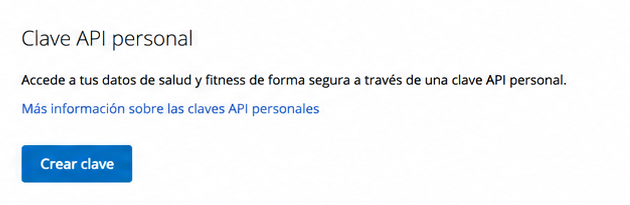
Click Create Key (in a Spanish-language account the button says Crear clave).
Read and accept Garmin's terms.
Choose how long the key lasts: 30 days, 90 days, 180 days or one year. For this guide, one year works best. Garmin emails you a week before it expires.
Click Create and copy the key right away. Garmin shows it only once. If you lose it, delete that key and create another one.
Do not paste it in any chat. In Step 2, the AI tells you which file to store it in.
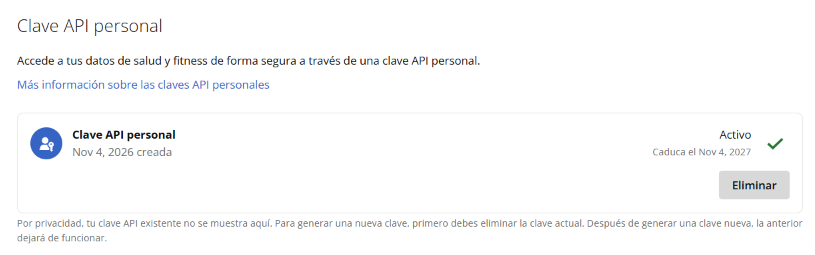
When you finish, you will see the key with the status Active and its expiry date:
Source: Garmin, personal API FAQ.
Step 2: ask Claude to set everything up
Install Claude Desktop, open the Code tab and paste a single prompt: Claude creates the folder, guides you with the key and downloads your data.
Download Claude Desktop from claude.com/download and sign in with your paid plan.
Open the Code tab, choose to work Local and select a new folder, for example Documents/My Garmin.
Paste the prompt below and send it.
I want to connect my Garmin account to Garmin's official personal API (read-only) and bring my data into a local database on my computer. Work in a new folder called garmin-api inside the folder I chose. Go one step at a time, explain in simple English and stop to wait for my OK before every big step.

RULES
- My API key is never pasted in this chat or printed. It only goes in garmin-api/.env.local, on the line GARMIN_PERSONAL_API_KEY=. Add .env.local and the data/ folder to .gitignore. To check it, just tell me whether it is loaded.
- Read-only. Do not change anything in my Garmin account.
- The source of truth is Garmin's official documentation: https://developer.garmin.com/gc-developer-program/personal/swagger-docs . If anything below does not match, follow what that documentation says.
- If something fails, show me the error and propose a fix before retrying.

STEP 1. Create the folder, an empty .env.local and the .gitignore. Guide me one step at a time to create my key at https://connect.garmin.com/app/settings/personalApiToken and to paste it myself into .env.local.

STEP 2. Test the connection: exchange the key for a token (it lasts 24 hours and does not renew: save it in data/ and request a new one after 20 hours) and show me my last 5 activities with date, type and distance.

STEP 3. Before downloading everything, answer with evidence from my real data, in a short yes/no table:
a) What does a strength session include (exercises, sets, reps, weight)?
b) Does the .FIT file of an activity come complete (heart rate, cadence, power)?
c) Are there Training Status, VO2 max or recovery time?
d) What do heart rate and stress contain throughout the day and how often are they sampled?

STEP 4. With my OK, download my full history to data/ as JSON: activities (with their .FIT), daily summaries, sleep, HRV, weight, and heart rate, stress and Body Battery for the last 90 days. Responses larger than about 256 KB fail with error 500: request small date ranges and retry with smaller ones. Short pause between calls and retry on errors 429, 502 and 503. It must be possible to run it again and download only what is new.

STEP 5. With my OK, load everything into a SQLite database (data/garmin.db) with tables for activities, exercise sets, daily wellness metrics, sleep, HRV and weight, designed to compare sessions with each other.

STEP 6. When you finish, explain in a short list which tables are in the database and what kind of questions I can ask you about my data.

Do not build dashboards or call any other API.
What to expect:
The AI asks your permission to run commands. That is normal: it works inside the folder you chose.
When the time comes, it opens the .env.local file. Paste your Garmin key right after the equals sign, with no quotes or spaces, and save.
The first download can take anywhere from a few minutes to a long while, depending on how many years of history you have.
Sign in with your Claude account and do not load any Anthropic key in this step. If there is an ANTHROPIC_API_KEY variable on your system, Claude Code uses it instead of your plan and bills you through the API.
Your plan has usage limits. If you reach the limit, wait for it to reset.
Source: Claude Help Center, use Claude Code with your Pro or Max plan.
Step 3: three checks before you trust it
Confirm these three things with your own eyes before trusting what the AI answers.
The activities match. The AI showed you your last 5 activities. Compare date, type and distance with what you see in the Garmin Connect app.
You know what data you have. The yes/no table from Step 3 of the prompt tells you what your watch provides and what it does not. Read it in full: it shows, for example, whether your gym sets have an exercise name.
A question with a known answer. Ask something you already know, for example: how many kilometres did I run last week? Compare with Garmin Connect. If it does not match, give it the exact figure and ask it to check.
Step 4: ask your AI
With the database built, you can ask your AI anything about your data. Open a new thread in the same folder, in Claude Code, and write in plain language.
Some ideas to get started:
How many kilometres did I run per month over the last year?
Compare my last five runs: pace, heart rate and cadence.
How has my sleep been over the last four weeks?
Show me a chart of my resting heart rate over the last year.
What was my highest training load week?
Which days did I train and how did I sleep the night before?
From here, the guide ends and it is up to you: use it however you like with the AI you chose.
What this guide cannot do
Garmin's personal API gives a lot, but not everything you see in the app. This is what we found in our test with a Garmin Instinct 3; with another model it may vary.
| Data | What happens |
|---|---|
| Training Status, VO2 max and recovery time | They do not come through. VO2 max appears in the documentation, but arrived empty in the activities. |
| Heart rate during the day | One reading every 2 minutes outside activities. It is no use for short efforts you did not record as an activity. |
| Stress during the day | Only the daily totals, without the hourly curve. |
| Body Battery | A curve roughly every 3 minutes. |
| Gym sets | The set-by-set detail (reps, weight, duration) is in the .FIT file. If you do not choose the exercise on the watch, most sets have no name. |
| Activity .FIT file | It came complete: cadence, power, ground contact time and vertical oscillation, identical to the one downloaded by hand. |
| Sleep and HRV | Only the nights you slept wearing the watch. |
| Indoor workouts, no GPS | Distance and pace are not reliable. Cadence and stride are. |
| Sending workouts to the watch | Not possible. The personal key is read-only. |
Sources: our test with a real account and, for read-only access, the5krunner on Garmin's personal API.
If something fails
Most problems are solved by pasting the full error message to the AI. These are the most common ones.
Error 500 when downloading data
The request was too large. Tell the AI: the call returned 500, use smaller date ranges.
The key does not work or has expired
Delete it on Garmin's key page, create a new one and paste it in .env.local. Garmin emails you a week before it expires.
It says the token is not authorized
The token lasts 24 hours. Ask the AI to get a new one with your key.
Some nights of sleep or HRV are missing
Those are nights you did not sleep wearing the watch. This is normal.
It says you reached the usage limit
Your plan has usage limits. Wait for them to reset.
You are being charged through the API by mistake
Check whether you have an ANTHROPIC_API_KEY variable on your system: Claude Code uses it instead of your plan. Remove it.
Someone asks you to paste your Garmin key in a chat
Do not do it. The key goes only in the .env.local file.
You do not see the Code tab
Check that your plan is paid and that the app is up to date.
If you stop using this guide, delete the key in Garmin Connect. It stops working instantly and nothing stays enabled.
Next step
You now have your Garmin data connected to Claude. From here you can ask it anything.